Difficulty
Moderate
Steps
5
Time Required

In Progress
This guide is currently being written. Reload periodically to see the latest changes.

Private
This guide will not appear in search results and can only be viewed by team members!
Quiz
0
-
-
Make sure the robot is designed with the base of the arm at the world origin. The Z axis (blue) should be up. The X axis (red) should be forward.
-
Make sure there is one Component for each moving section of the arm and the base.
-
Hide any internal components. This protects your design secrets and makes the file run smoother.
-
Export each component separately.
-
Set the Format to OBJ.
-
Set the Unit Type to centimeters.
-
Export it to a folder on your computer.
-
-
-
The easiest way is to modify an existing robot arm. Here we will start by loading the Meca500 example.
-
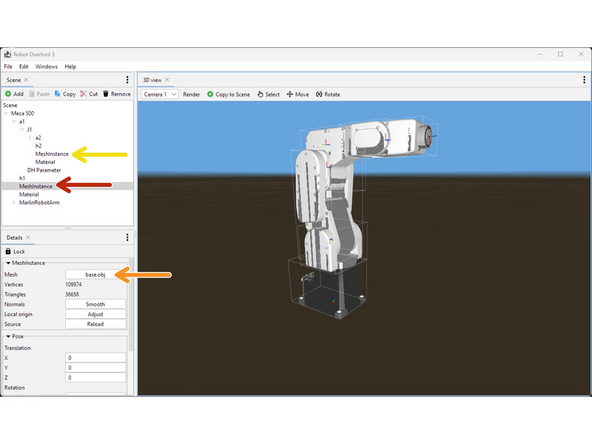
In the Scene tab, find the first MeshInstance for the base.
-
In the Details tab, click on the Mesh button and choose your OBJ file.
-
If your model file appears turned the wrong way or the wrong size, you will have to export it again from Fusion360.
-
Repeat for all subsequent MeshInstances.
-
Your mesh files might appear in the wrong position. We will fix them in the next step.
-
Your arm should look like this. The colors are all wrong but the meshes should be in the right place. We will fix the colors in the next step.
-
-
-
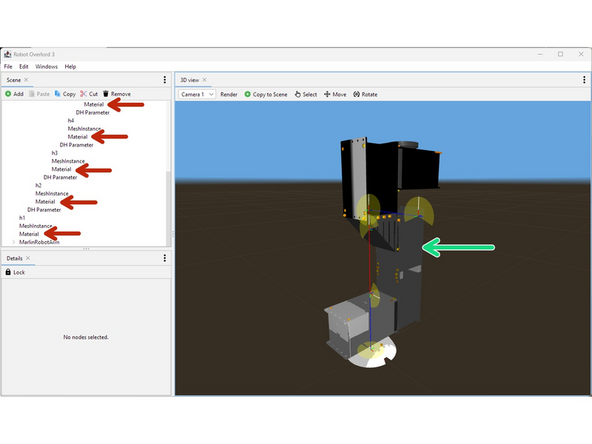
The example file already has some Material settings. These were meant to paint the Meca500 model, not your new design. You will need to change these settings for your arm. Symptoms include incorrect colors or missing parts.
-
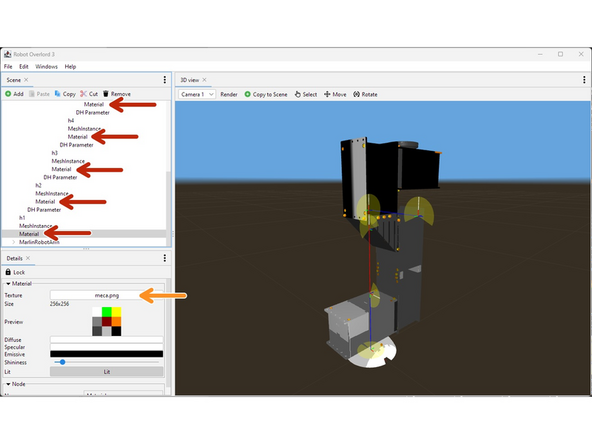
In the Scene tab next to each MeshInstance there is a Material node.
-
Change the Texture of the Material to your new texture. A white square 64x64 is a good option.
-
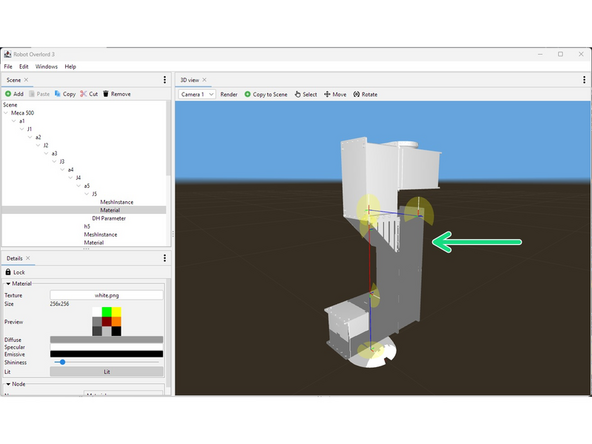
Your robot should look like this. Notice that the DH parameters are very different from the mesh and moving the arm will look very wrong. We fix that in the next step.
-
Drawing DH parameters and Hinges can be turned on and off in the 3D view tab render menu.
-
-
-
Insert wisdom here.
-
-
-
Insert wisdom here.
-