Introduction
This tutorial will show you how to use the Makelangelo app to update the robot firmware.
-
-
Sometimes the code in the Makelangelo plotter robot is updated with improvements. Sometimes you might change from a Makelangelo 5 to HUGE or vice versa. These steps will help you make the change.
-
The update tool in File > Update firmware will help you to upload the new code to your robot.
-
Depending on your operating system, there may be extra steps.
-
-
-
The update tool relies on another program called avrdude. There are many ways to install it. This is one example.
-
Install Homebrew: Please see https://brew.sh/ for instructions. It should be two lines to copy and paste.
-
Install avrdude: from a terminal window run brew install avrdude
-
-
-
Connect the USB cable to the robot on the left side of the motherboard. Turn on power.
-
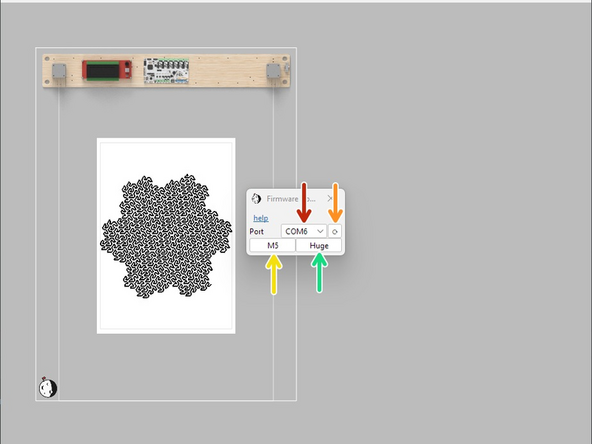
Click the turning arrow button to the right of "port" to refresh the list of available ports.
-
A new port should appear in the combo box next to Port. If there is more than one you may have to experiment.
-
Press M5 for Makelangelo 5...
-
... or Huge for HUGE, depending on your machine.
-
The application should take about a minute to download the firmware and then upload to the machine.
-
If it immediately says "finished", something has failed. Please contact us for more help.
-
-
-
After successful upload the LCD panel will probably say there is an EEPROM change. Accept the change. Turn the dial and press in to click/accept.
-
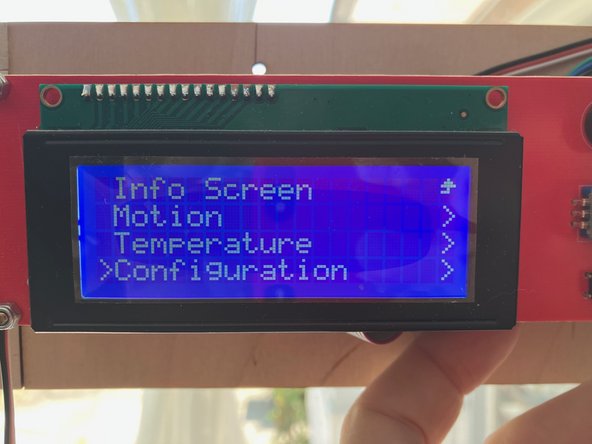
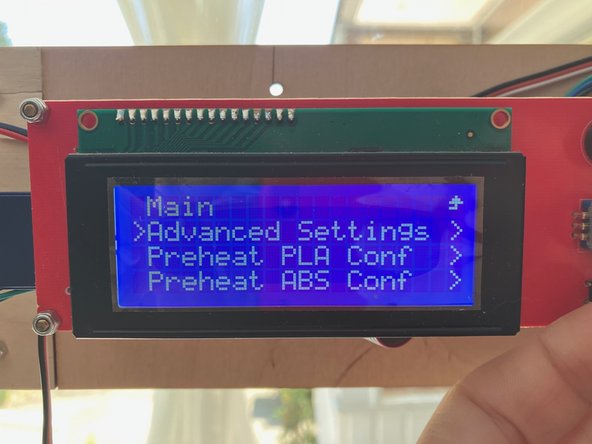
Confirm the change has been applied. Click the dial, navigate to Configuration > Advanced Settings.
-
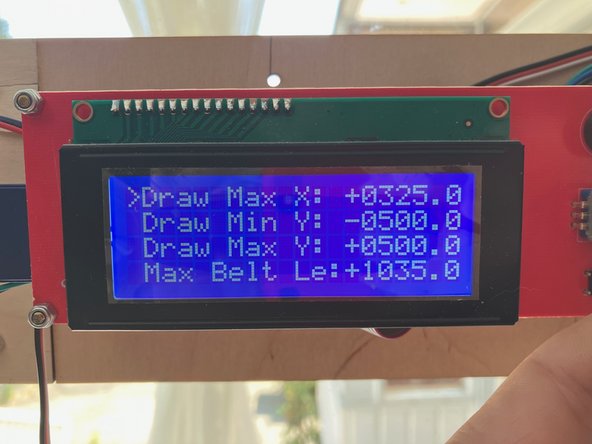
For M5, verify that Draw Min X is -325, Draw MinY is -500, and Belt length is 1035.
-
For HUGE, verify that Draw Min X is -683, Draw MinY is -1000, and Belt length is 2035.
-