Difficulty
Moderate
Steps
4
Time Required

In Progress
This guide is currently being written. Reload periodically to see the latest changes.

Private
This guide will not appear in search results and can only be viewed by team members!
Quiz
0
-
-
Sometimes the code in the Makelangelo plotter robot is updated with improvements. Sometimes you might change from a Makelangelo 5 to HUGE or vice versa. These steps will help you make the change.
-
The update tool in File > Update firmware will help you to upload the new code to your robot.
-
Depending on your operating system, there may be extra steps.
-
-
-
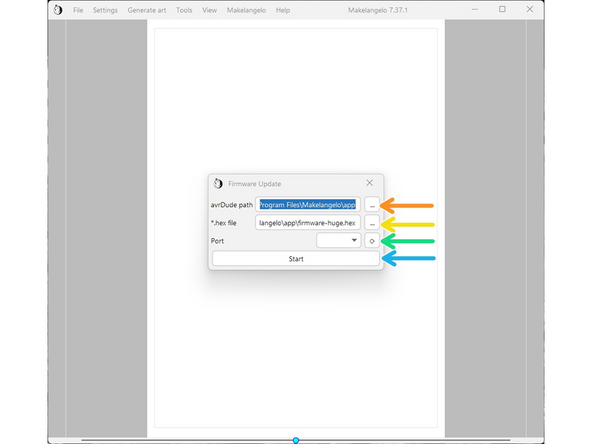
In avrDude path, click the '...' and surf to C:\Program Files\Makelangelo\App
-
In *.hex file, do the same thing and then click on firmware-huge.hex for HUGE or firmware-m5.hex for Makelangelo 5.
-
Connect the USB cable to the robot on the left side of the motherboard. Turn on power. Click the turning arrow button to the right of "port". A COM port should appear in the dropdown box.
-
Press Start. The application should take about 20 seconds to upload the firmware.
-
Now go to the last step - almost done!
-
-
-
The update tool relies on another program called avrdude. There are many ways to install it. This is one example.
-
Install Homebrew: Please see https://brew.sh/ for instructions.
-
Install avrdude: from a terminal window run brew install avrdude
-
Run the firmware update tool in app. Select your firmware: firmware-m5.hex for M5, firmware-huge.hex for HUGE.
-
Connect the USB cable to the robot on the left side of the motherboard. Turn on power. Click the turning arrow button to the right of "port". A COM port should appear in the dropdown box.
-
Run the update tool by clicking Start.
-
Now go to the last step - almost done!
-
-
-
If it immediately says "finished", something has failed. Please contact us for more help.
-
After successful upload the LCD panel will probably say there is an EEPROM change. Accept the change.
-
Confirm the change has been applied. Click the dial, navigate to Configuration > Advanced Settings.
-
For M5, verify that Draw Min X is -325, Draw MinY is -500, and Belt length is 1035.
-
For HUGE, verify that Draw Min X is -683, Draw MinY is -1000, and Belt length is 2035.
-