-
-
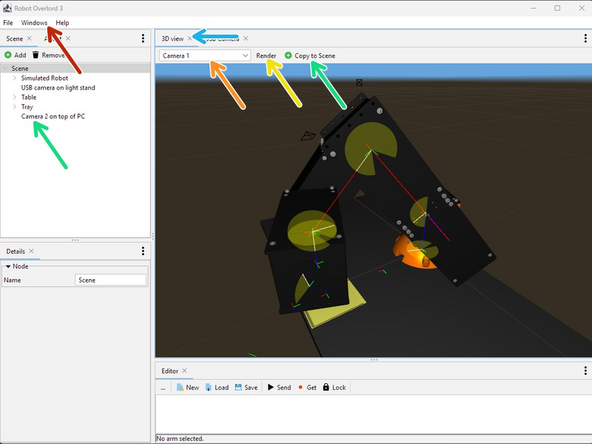
The 3D View can be found via the Windows menu. The keyboard shortcut is Shift+F1
-
3D View may be open already in a tab. Look for the matching tab name.
-
Change active camera in the Scene with the 3D view > camera selector. There is always a default Camera 1
-
Render: Activate render passes. Each render pass draws one type of thing the camera might see in the 3D view.
-
Copy to Scene: Makes a copy of the active camera and adds it to the root of the Scene. Here a camera has been added and renamed by the user.
-
-
-
Pan and tilt: Drag the mouse while holding the middle mouse button.
-
Dolly: Drag the mouse while holding the middle mouse button and SHIFT.
-
Pedestal and Truck: Drag the mouse while holding the right mouse button and SHIFT.
-
Orbit: Drag the mouse while holding the right mouse button. Change the orbit distance by rolling the mouse wheel.
-
-
-
Did you know? You can see one camera from another. Add a second camera and try it!
-
Use the Scene to Add a Camera. The new camera will appear in the Scene graph under the selected nodes. It will be at world origin, facing down.
-
In 3D View, select the new Camera. The view will now draw from the new point of view.
-
Move one camera until it is pointing at the other camera.
-
Make sure Render > Cameras is set to Always or else the cameras will be invisible.
-